TranzPort Quote

“Dream Product!!! I am a songwriter and producer and I play all of the instruments in my songs. Going from behind the kit to picking up a guitar is so easy now, I put TranzPort around my shoulder and walk around with it in the different rooms in my studio envir...”

Adam Phillips

Quick Facts

  • Wireless DAW control: operate your computer-based digital audio workstation from anywhere in your studio
  • Compatible with Mac® and Windows®
  • Supports Pro Tools®, Logic®, Cubase®, Digital Performer®, Sonar™ and other DAW software applications
  • Two-way interface: get timecode position, track name/number, track volume, pan settings and more via backlit LCD display and LED indicators
  • Uses high-frequency RF technology: no wires or line-of-sight required, and no added interference
  • Dedicated buttons for often-used functions, including transport controls, marker/locate buttons, track control (level, pan, solo, mute, record arm) and more
  • Operates on AA batteries
  • Small, lightweight design
  • Footswitch input
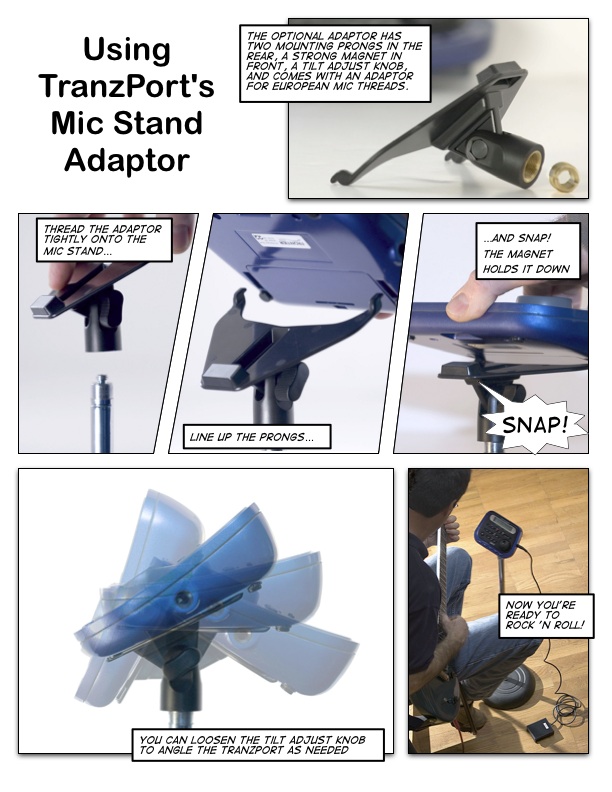
  • Microphone stand mount, custom padded carrying bag, and standard footswitch are available from the on-line store
Pro Audio Review PAR Excellence Award Mix Certified Hit Award EQ Exceptional Quality Award Special Innovation Award Keyboard Key Buy Electronic Musician 2006 Editors Choice 2006 EEC Award Nominee 2007 Remix

TranzPort and MultitrackStudio 4

MultitrackStudio owners who appreciate the power and simplicity of its user interface now have a new tool that integrates seamlessly with their environment. Introducing the powerful yet simple TranzPort wireless remote controller. TranzPort goes way beyond the ordinary DAW controller, literally!

MultitrackStudio Track Window

Perform basic transport functions, mute, solo, or arm tracks without walking back and forth to your computer. Add and navigate markers effortlessly from your piano or vocal booth. TranzPort can leap from one track to the next, adjust levels, set punch in and out points and more, all while keeping you in full control with its backlit 2×20 LCD display and 8 status LEDs. MultitrackStudio users also have the ability to customize the TranzPort interface from within the ‘Control Surface Settings’ panel, allowing each user to define the optimum feature set for their environment.

MultitrackStudio Setup Dialog

Setting up TranzPort within MultitrackStudio is a snap. First, follow the instructions for installing the basic drivers on your computer found in the User’s Guide or Quick Start Guide. Then open MultitrackStudio and the Devices panel from under the Studio menu. Click on the ‘Settings’ button and select ‘TranzPort’ as the In and Out option for Control Surface. Next, open the Control Surface panel from under the Studio menu and select ‘TranzPort’ from the preset list. That’s it!

MultitrackStudio Settings Dialog

There are two PDF documents created specifically for MultitrackStudio 4 users on the Frontier Design Group website. The first, MultitrackStudio _4.pdf is a guide to using TranzPort and contains detailed instructions for configuring the TranzPort, as well as information about using TranzPort’s advanced features, and a quick reference chart listing the default control set for MultitrackStudio 4.

The second file, MultitrackStudio_Layout.pdf is a single page picture of the TranzPort controller with overlaid text summarizing the MultitrackStudio feature set. It may be helpful to print this file and have it handy as a quick reference guide.

We encourage visitors to our user forums to post their comments and questions. Other users often have useful ideas and experiences to share, and we monitor the posts to provide additional input.

Below are other TranzPort related links that may be useful:

Copyright © 2005 Frontier Design Group